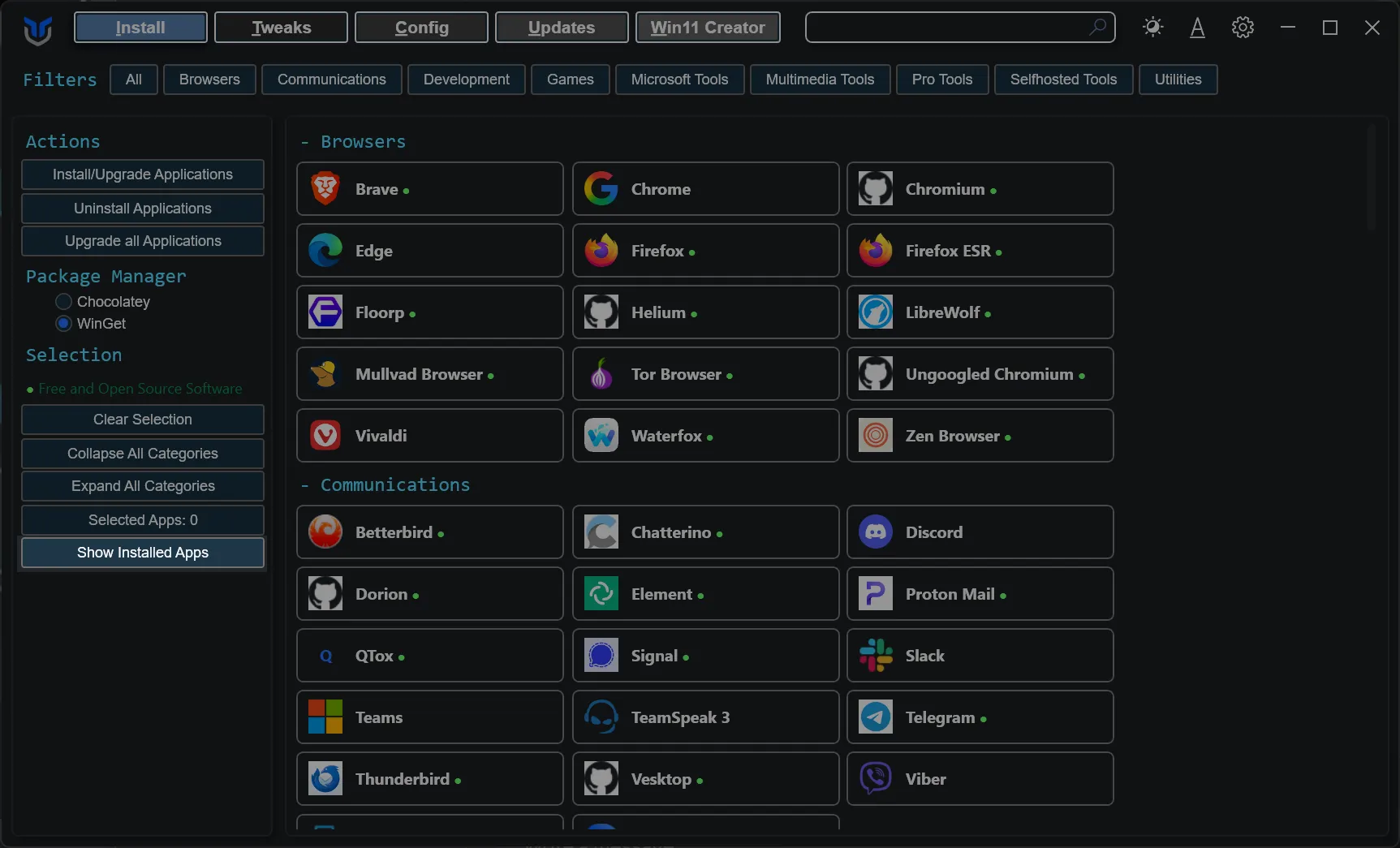
Applications
The Applications tab installs, upgrades, removes and audits Windows software from one list, so a fresh machine no longer needs a dozen separate installers. WinUtil works through package managers, so what you can install or detect depends on what WinGet manages on your system.
- Choose the applications you want to install or upgrade.
- For programs not currently installed, this action will install them.
- For programs already installed, this action will update them to the latest version.
- Click the
Install/Upgrade Selectedbutton to start the installation or upgrade process.
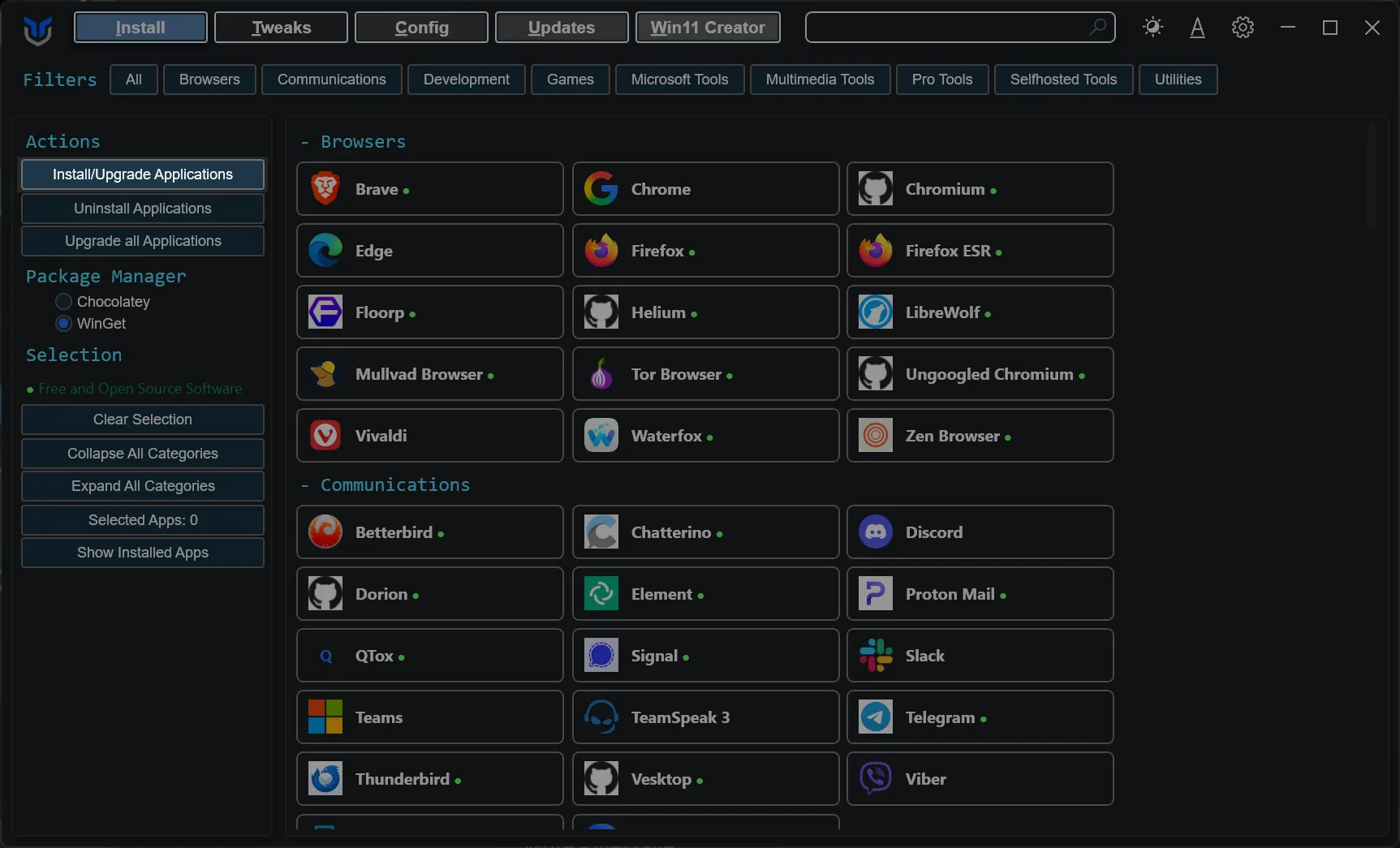
- Select the programs you wish to uninstall.
- Click the
Uninstall Selectedbutton to remove them.
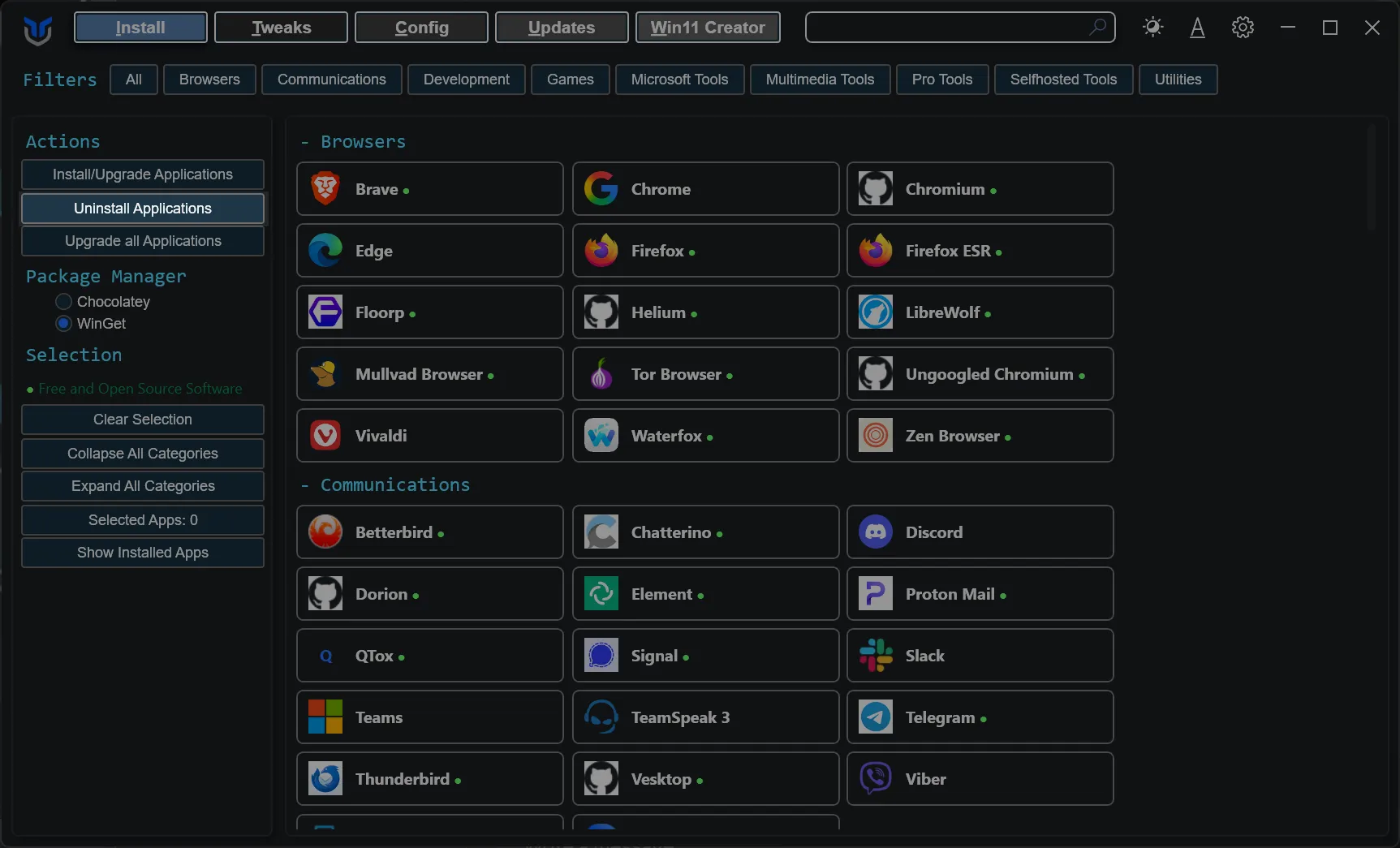
- Simply press the
Upgrade Allbutton. - This upgrades every supported installed program without individual selection.
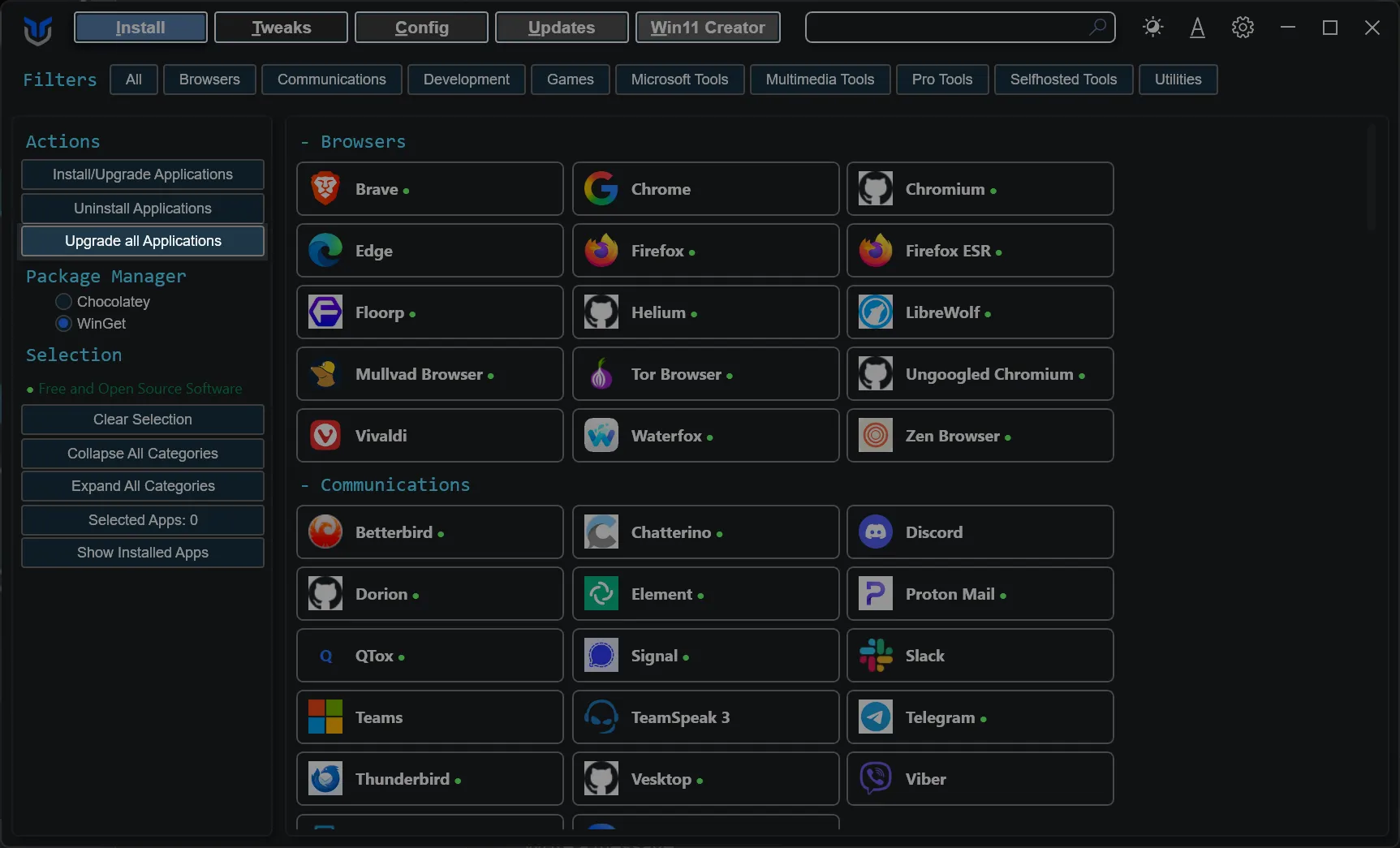
- Click the
Clear Selectionbutton. - This clears all current selections.
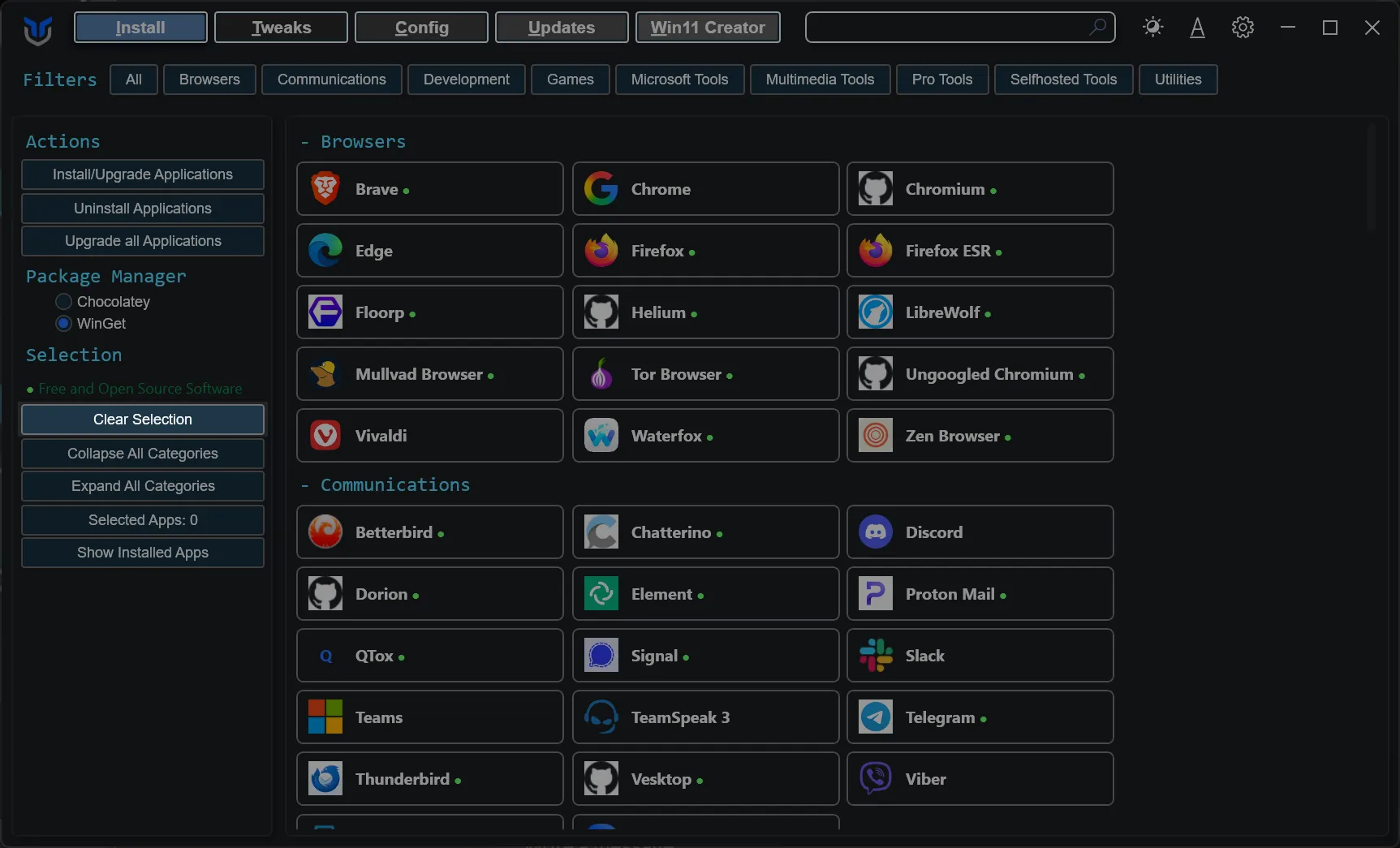
- Click
Collapse All Categoriesto close every category and shrink the list to just the category headers. - Click
Expand All Categoriesto reopen every category and show all applications again.
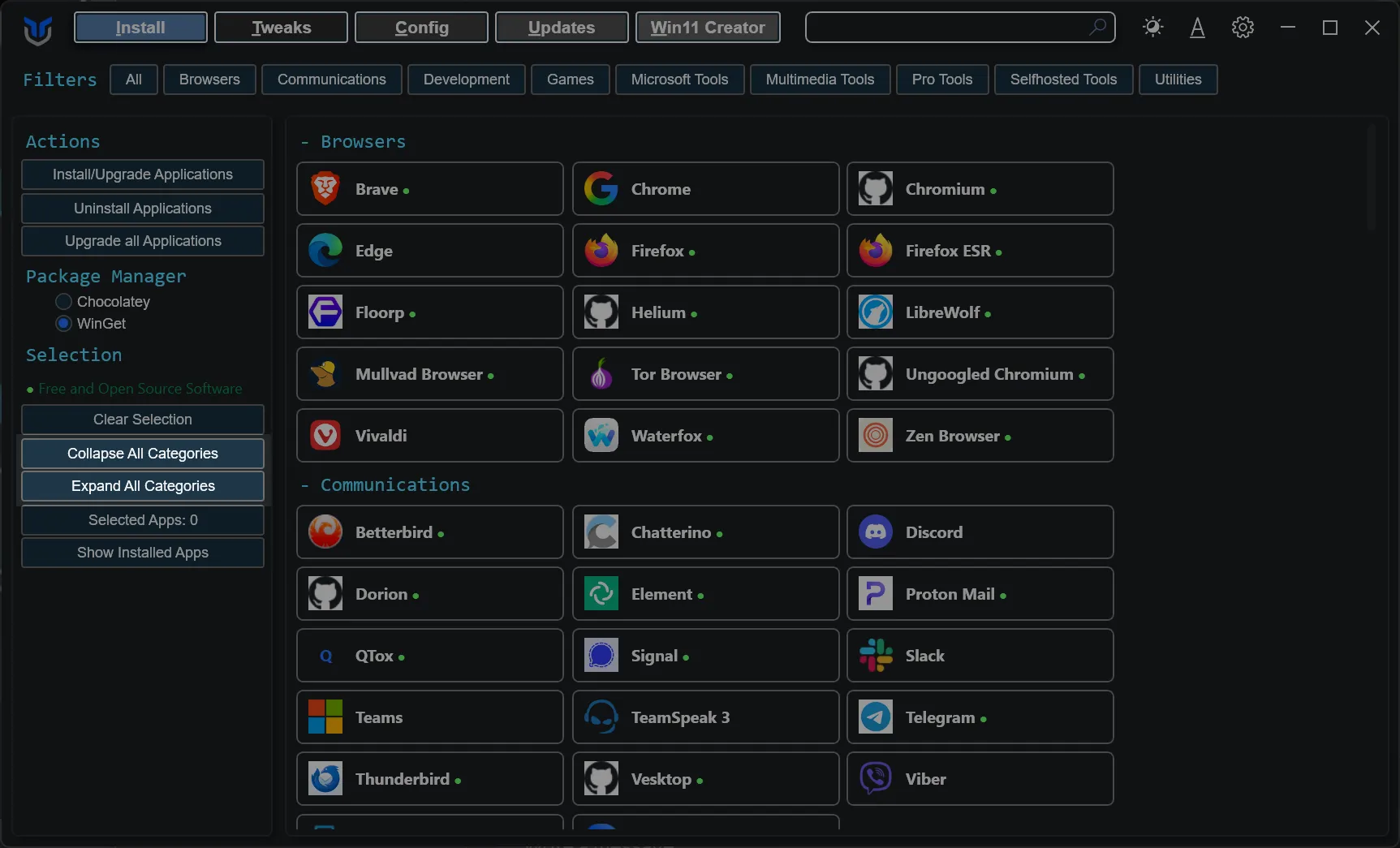
- Click a category chip at the top of the tab to show only that category. The chip stays highlighted while its filter is active.
- Hold
Ctrland click to add more categories to the filter, or to remove one again. - Click
All, or click the highlighted category again while it is the only one selected, to clear the filter. - Categories with matching results open while a filter is active. Ones that filtering opened for you go back to collapsed when you clear it, ones you opened yourself stay open.
- The
Selected Appscounter in the sidebar shows how many applications are currently selected. - Use it to keep track of your selection as you browse categories.
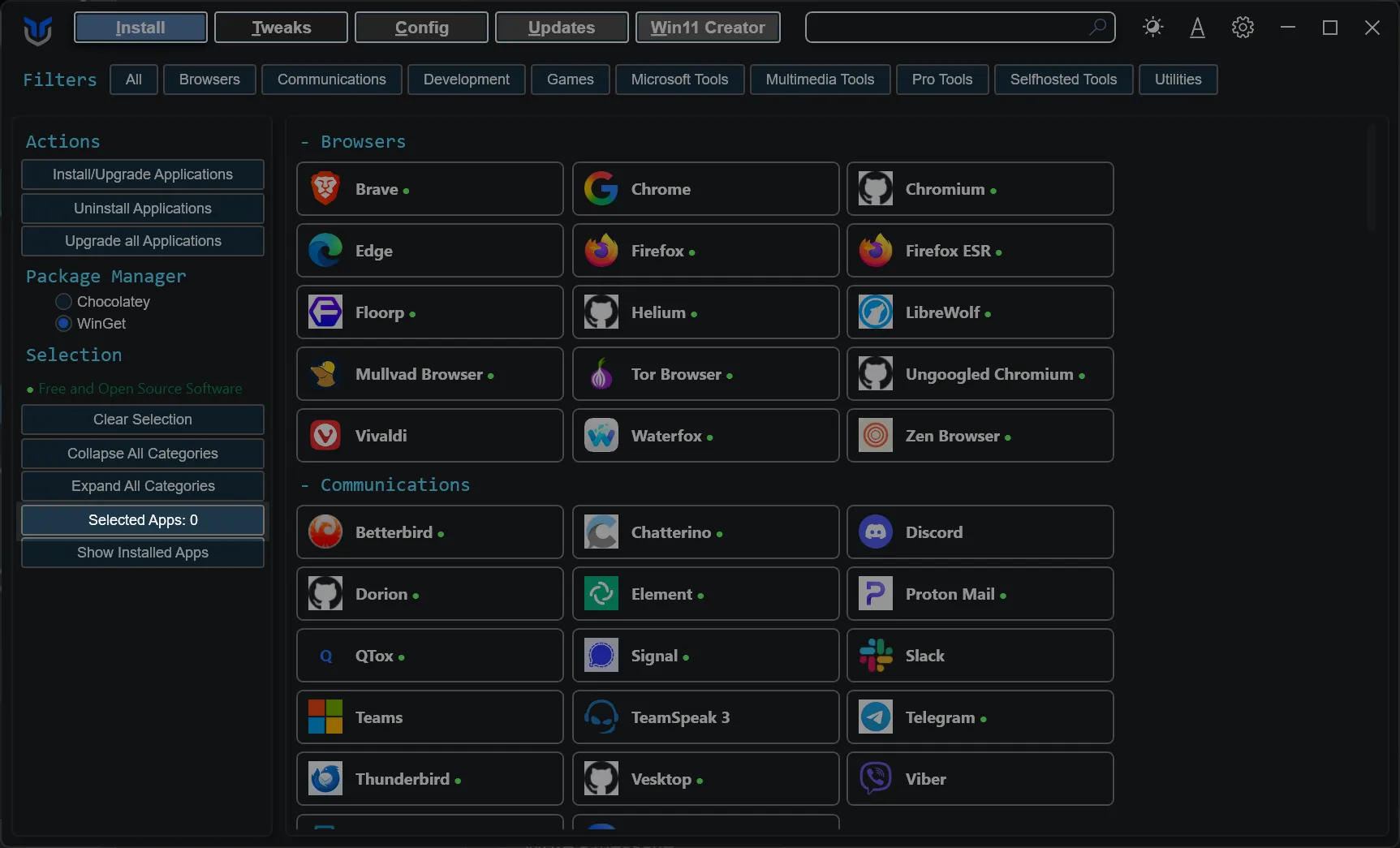
- Click the
Show Installed Appsbutton. - This scans for and selects installed applications supported by WinGet.